
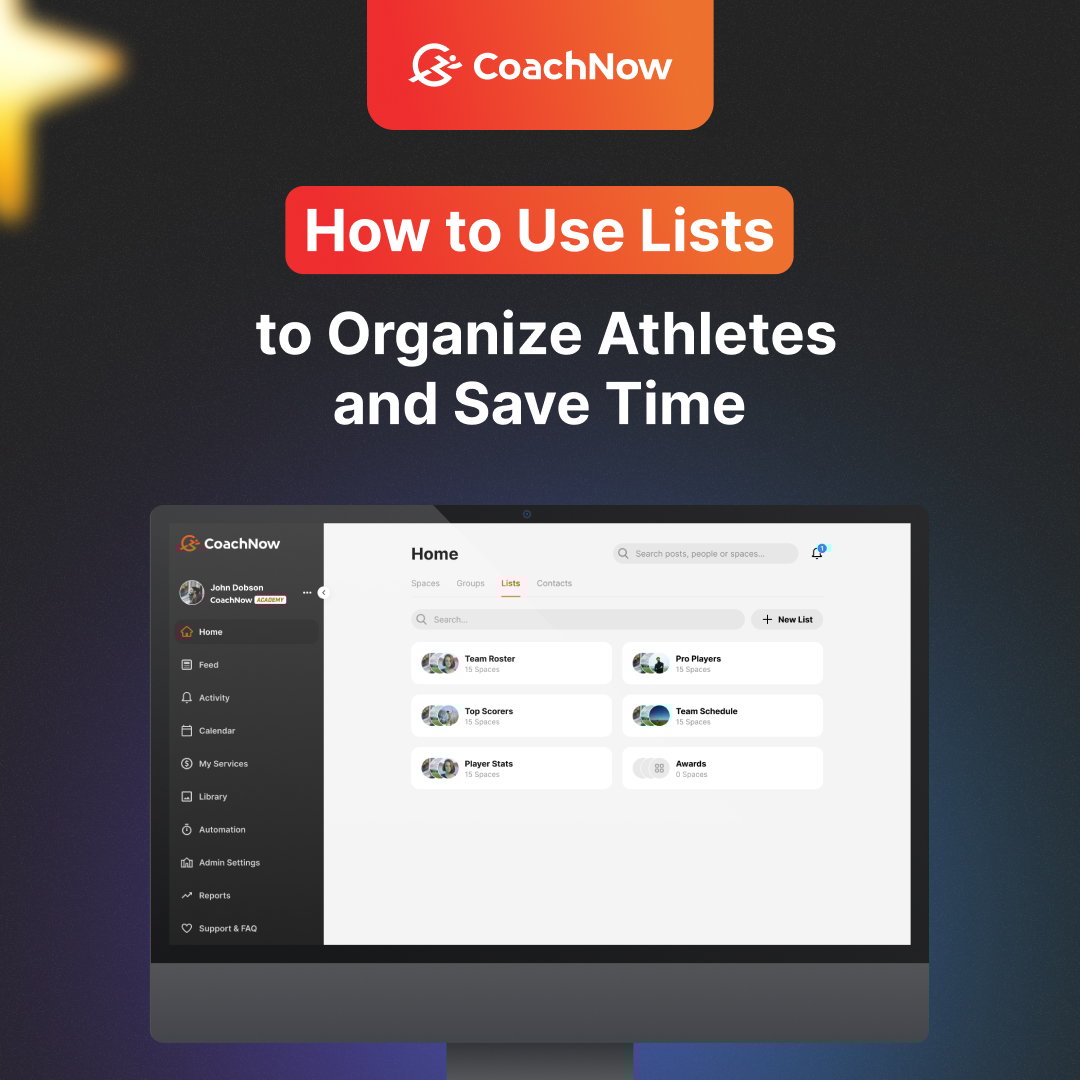
Lists are one of the most important parts of CoachNow. The coaches who are using Lists optimize their time and energy, while the coaches who don’t are missing out on a ton of value.
Learning how to use Lists properly will be a game-changer for your coaching, so let’s get started.
What are Lists?
Lists are a feature that allow you to separate your Athletes or clients into lists and post directly to their Space. You can also invite new coaching staff into Spaces in bulk.
"Smart Lists" unlock even more functionality - automatically organizing your athletes based on their activity in the app.
Lists are a way to organize your Spaces so you can easily access what you need, exactly when you need it.
How to Create a List in CoachNow
Creating lists is pretty simple - you’re basically creating different categories of your Spaces, and then selecting those Spaces to add to the List.
That way, when you open your List, you’ll be able to see all of your different categories and Spaces that belong there, making it a really quick and easy way to organize and view everything in one place.
.jpg?width=1343&height=591&name=How%20to%20Manage%20(10).jpg)
1. Navigate to Lists from the Home Screen and tap "Add a New List".
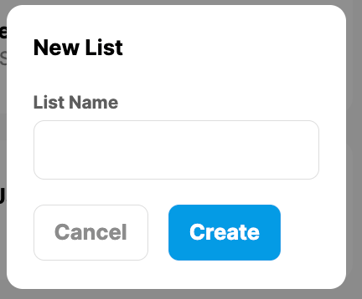
2. Name your List, then "Add Spaces" to select from a list of Spaces to add to the List. Click on the bubble next to the Space name to add a Space to the List.
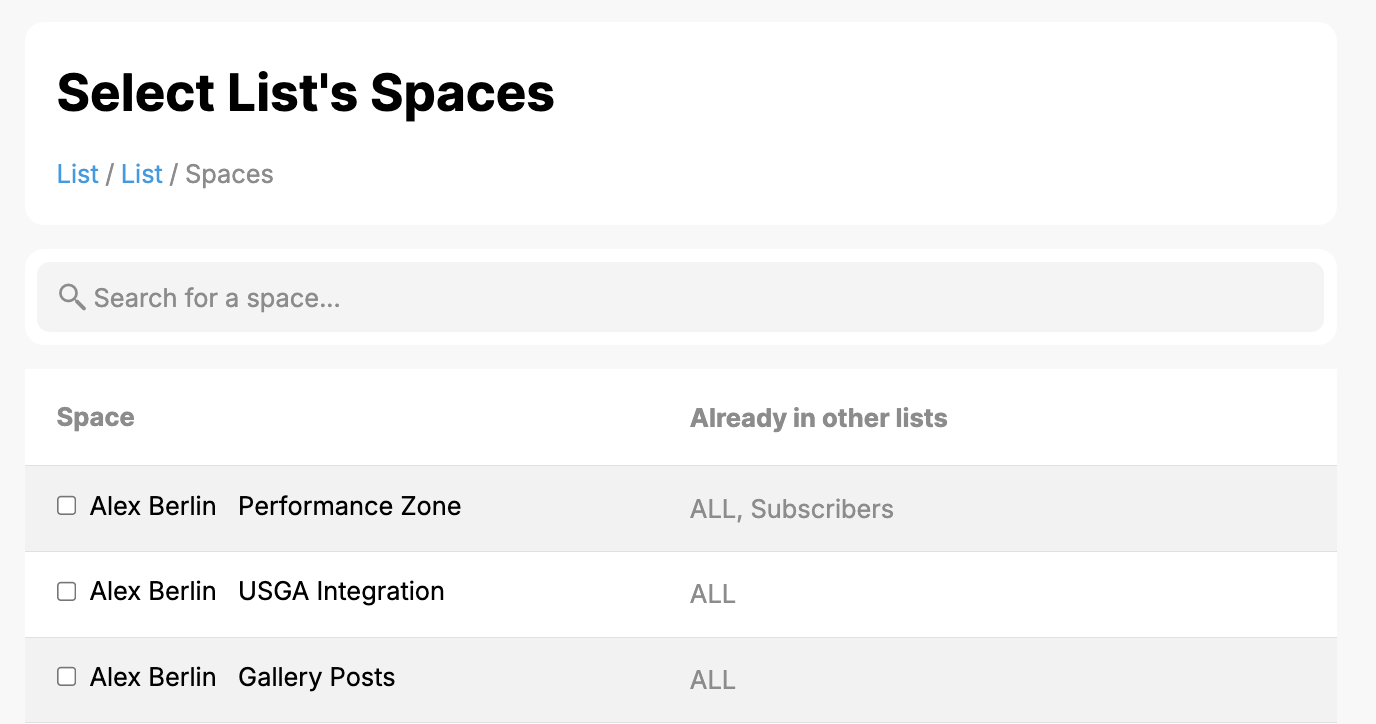
3. After naming your List and selecting Spaces, click "Create” in the top right corner of the screen to save and create the list.
How to use Lists to Organize your Coaching Schedule
For example, a lot of people will use them to divide up a week’s worth of coaching.
They might have a List for:
-
Monday Players
-
Tuesday Players
-
And so on
When they’re coaching on Monday, they can open the corresponding List and see all of the relevant athletes. You could also organize your Lists by age group, session type, or any other category.
Now, we have a search bar at the top of your Lists that allows you to easily search through your spaces and add them to the List, without having to scroll through them all.
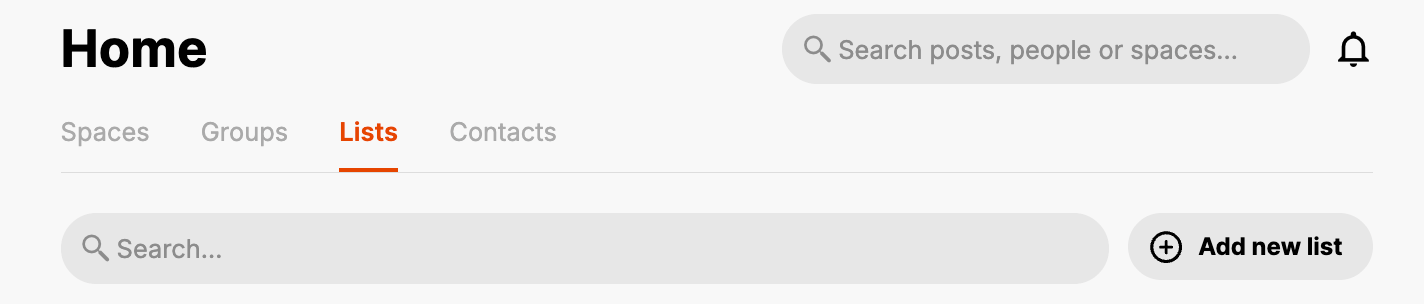
If you tap into a List, you’ll be able to see all of the Spaces within that List, and at the top of the screen, you’ll see that you can post to a List or edit the Spaces. This is actually something we’ve iterated on over the years to make it simpler for you.
.jpg?width=1343&height=591&name=How%20to%20Manage%20(9).jpg)
How to add Coaches to your Lists
Let’s say you’re working with other coaches in a big organization and you’ve got other coaches you want to bulk add to the List.
1. First, create the List of Spaces you want your new coach to be invited to.
2. Once the List is complete, click on the gear icon to open the List options.
3. Select the "Invite Coaching Staff to all Spaces" option.
4. Fill in the User field by adding the Coaches name and email address, then select their role type and click “Add to finish” to send the invitations out.
Another way you can add other people to your List is by email - it’s the same invitation process we have for adding people to Spaces and Groups.
I do want to mention that when you add a member to your List, you’re also adding them to every single Space inside of that List.
It’s a quick and easy way to get a new coach into lots of different Spaces at once.
Let’s say you had all of your Spaces in one List and you wanted to add a coach to every single Space.
You can create a List, add all of your Spaces to that List, and then add your other coaches.
Something worth noting is that taking these steps above doesn’t copy the list to each of their respective accounts. Each coach still has to go into their account and make their own Lists, if they choose to do so.
The #1 Mistake Coaches Make with Lists
One huge mistake I see people making all of the time when managing their Lists is accidentally inviting people as a “Coach”, rather than editing the Spaces within a List and adding them there.
Here’s how to avoid it:
1. When you’re in your List and you’re getting ready to add another Space, I want you to go over to the “Gear” icon and select “Manage Spaces”. This is where you’ll find the entire Rolodex of all of your clients to add them.
.jpg?width=1343&height=561&name=How%20to%20Manage%20(8).jpg)
2. Don’t use the dropdown menu to invite athletes that way, because this is where you’ll see a lot of errors with athletes showing up in other athlete’s spaces.
Essentially, by inviting someone to all of the Spaces, you’re giving them access to ALL of the content inside of that Space, basically adding them as a Coach or member, which you don’t want to do.
How CoachNow Support Can Help You Duplicate Lists
Something that I want to offer to all of our users is our team helping you duplicate Lists on the backend.
Shoot us an email at support@coachnow.io and we can help duplicate those Lists, copying them over to your other coaches. It’s a really simple way for us to help your coaches get access to all of the Lists that you’ve created inside of your account!
Why Lists are Worth Using
As I mentioned before, Lists are one of my favorite tools because they:
-
Help coaches cut back on so much time
-
Give you a zoomed-in view of the categories of clients you might be working with on a daily, weekly, or monthly basis
-
Bulk add new coaches into multiple Spaces at once