
Manually creating Spaces for a big group of athletes can be a pain.
If you’ve ever run a camp, clinic, or seasonal program, you know exactly what I’m talking about.
Luckily, there’s a better way.
Using a simple CSV file and a special link, you can create all your Spaces in just a few clicks, making sure each athlete is looped in from day one.
Below, we’ll go through the exact steps you need to follow.
Let’s dive in.
Step 1
-
Create the List(s) of your choice
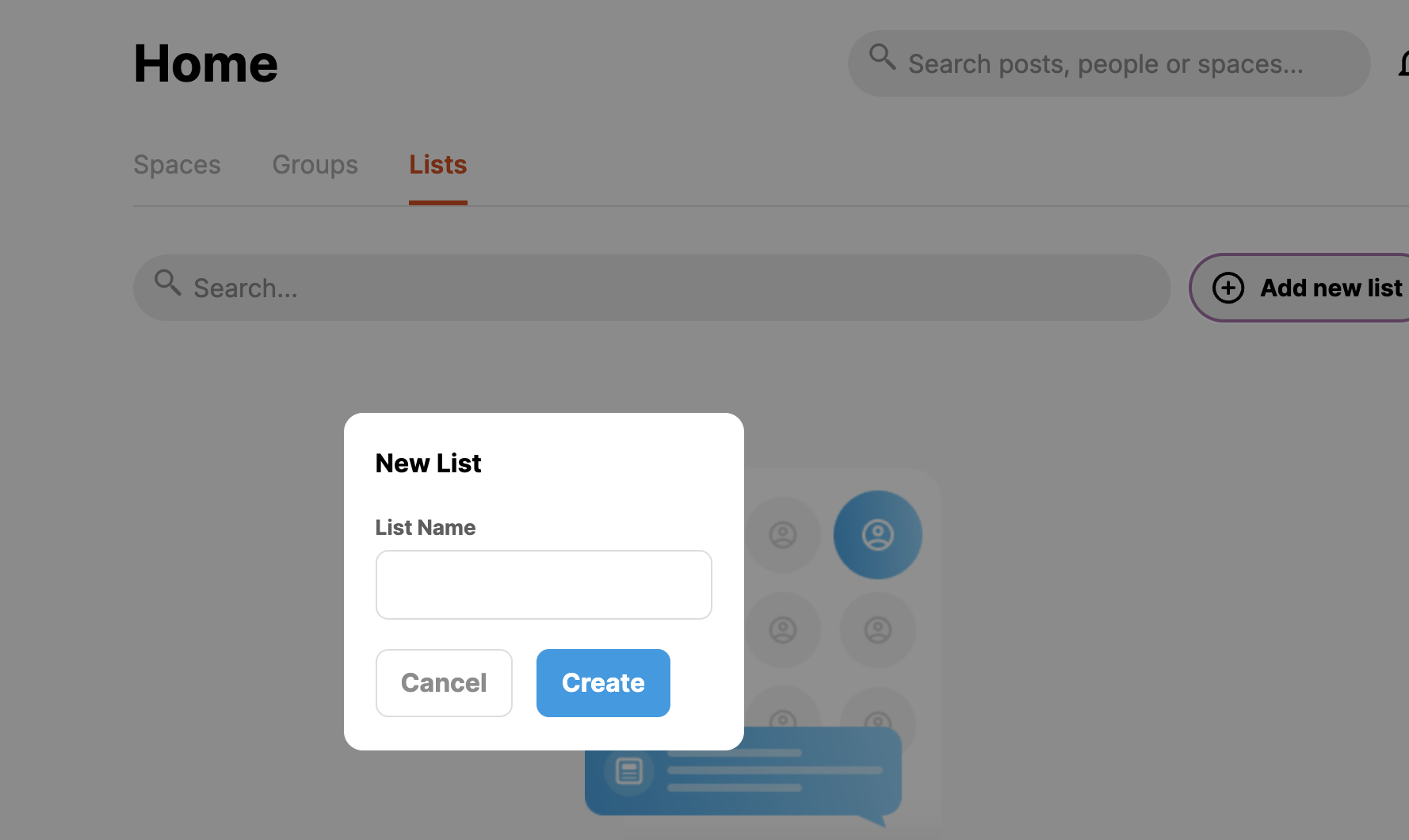
Click on the Lists tab -> new segment -> name the List (ex: June 9-16 camp)
-
Scroll to the bottom of the page to create.
NOTE: You do not have to select any spaces to create the segment.
*This step is important to do first, and you will see why in Step 6*
Step 2
-
Create a sheet with camper names and emails
*The sheet cannot have headers and must be two-column:
-First name, Last name
If you’re unsure about how to get their names into the correct format, learn more here.
Step 3
-
Download the file as a csv
File -> Download as -> comma-separated values (.csv)
Step 4
-
Login to your account, then paste this link into the URL
https://app.coachnow.io/spaces/new/multiple/true?adminCSV=true

Step 5
-
Upload the CSV file by clicking on the button highlighted below.
.png?width=512&height=417&name=unnamed%20(5).png)
***IMPORTANT***
Double-check to ensure your sheet is formatted exactly as it says in the underlined sentence.
Step 6
-
Add coaches who should be invited to all of the spaces you are creating.
.png?width=512&height=435&name=unnamed%20(6).png)
Step 7
-
Click Next. Add the segment(s) you created in Step 1.
Step 8
-
Finish
Spaces are where the CoachNow magic happens, so ensuring that they’re set up properly is key to both you and your athletes’ success.
Instead of wasting hours building Spaces one by one, you’ve got a system that lets you set up an entire group in minutes.
So the next time you need to create a Space, use this CSV trick to spend less time on admin tasks and more time coaching.
Have any questions? Let us know!