
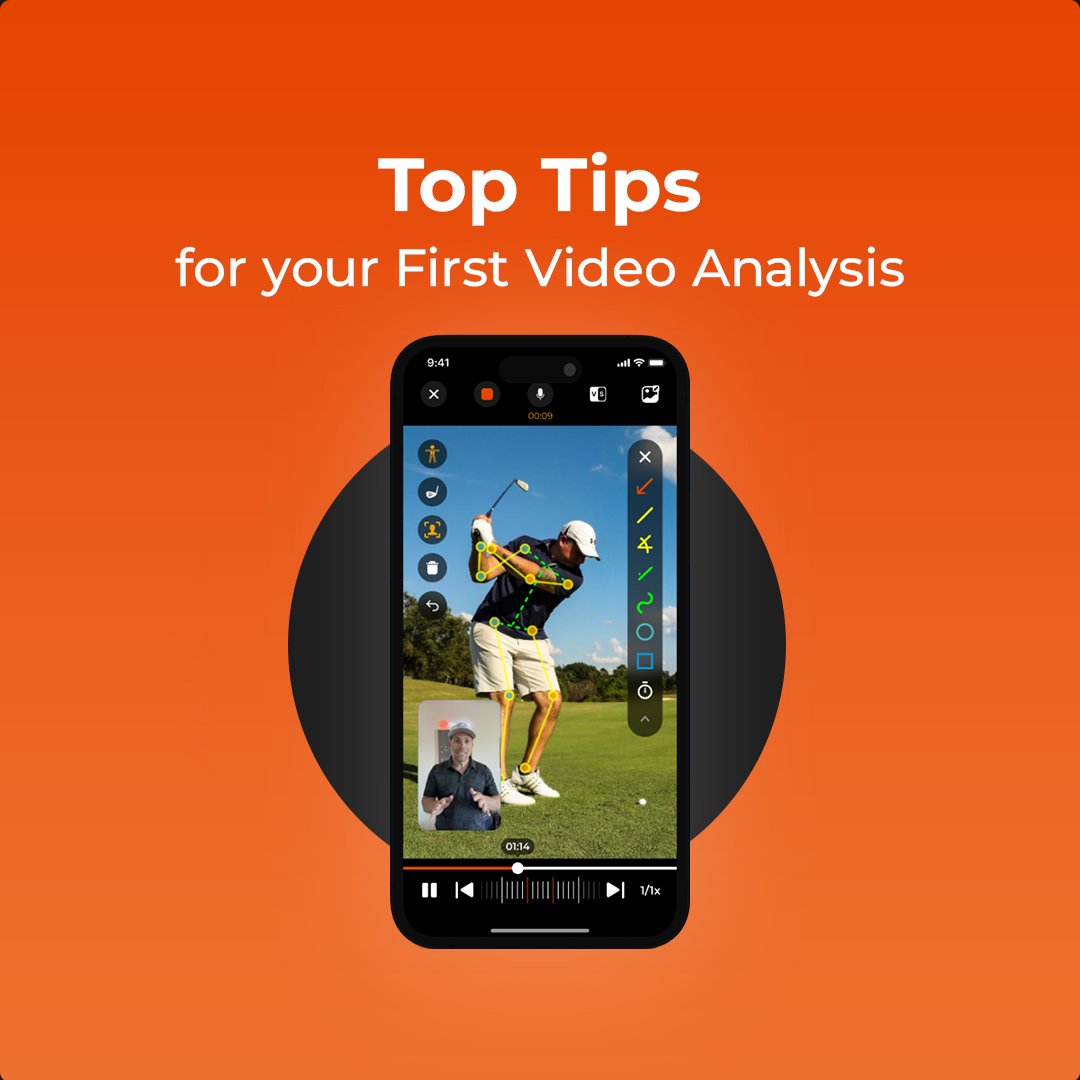
Video analysis is one of the most powerful tools in your coaching toolkit.
When done well, it can transform how your athletes see, understand, and improve their performance.
But if it’s your first time, it can feel a little overwhelming. Where do you start? What buttons do you press? And how do you make sure your athletes actually get the most out of it?
Here’s a quick, coach-friendly guide to help you nail your very first video analysis in CoachNow.
1. Where to Begin
When it comes to starting your video analysis, you can:
-
Click directly on any video an athlete uploads into a Space and begin your analysis from there.
-
Head to your video library, pick a clip, and get started.
-
Or upload a brand-new video (or even record one in the moment) and dive right in.
If the video was uploaded by an athlete, we recommend reviewing it before hitting “record.” Watch the full clip, think through the key points you want to highlight, and make a quick plan. This step ensures your analysis is valuable and easy to understand.
2. How to Start, Pause, and Stop Your Analysis
Once you know what you want to say, it’s time to start.
Tap the microphone icon at the top-center of your screen to activate the video analysis. This will record your voice and capture all your on-screen markups in real time.
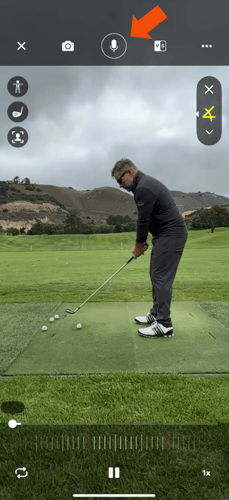
Need a moment to regroup mid-analysis? No problem. You can pause at any point, gather your thoughts, and then pick up right where you left off.
While recording, make full use of the tools at your disposal; drawing, zooming, and slow-motion can all help you emphasize key moments in the video.
Once you’re finished, you can save the recorded video to your library.
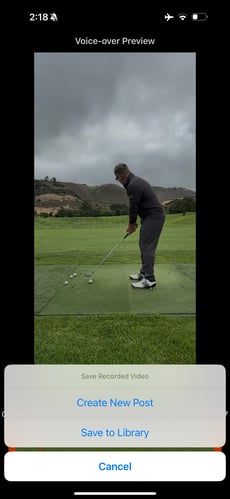
3. How to Share Your Finished Analysis
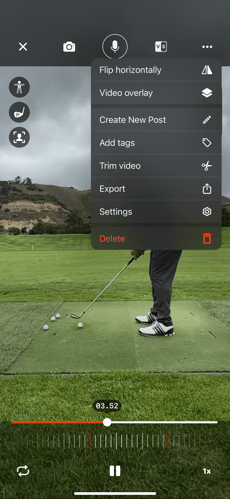
When you’ve wrapped up your analysis, you can:
-
Post it directly into a Space or Group so your athletes see it right away.
-
Send it to a custom List if you’re sharing with multiple people at once.
-
Export it to your phone or device to upload to Youtube, Instagram, or any other platform.
For more on what to do during your video analysis for maximum impact, check out our YouTube channel to learn more.
Your first video analysis doesn’t need to be perfect; what matters most is that you start using the tool and refine your approach over time. With a little preparation, a clear plan, and the right sharing method, you’ll quickly see how video analysis can make your feedback more engaging, more actionable, and ultimately more effective.
What are your favorite video analysis tips? Let us know - we’d love to hear from you!