
At CoachNow, we aim to provide comprehensive support to help both coaches and athletes make the most of our cutting-edge video analysis features and collaboration tools.
Today, we’re gonna address some of the most common questions we get from our members to help you seamlessly integrate CoachNow into your coaching and training routines.
How to Change an Athlete's Email Address
You can only edit an email for an athlete if the invitation has not been accepted yet. Otherwise, the athlete needs to make the change from their end, or reach out to support@coachnow.io for help.
How to Edit/Resend an Invite
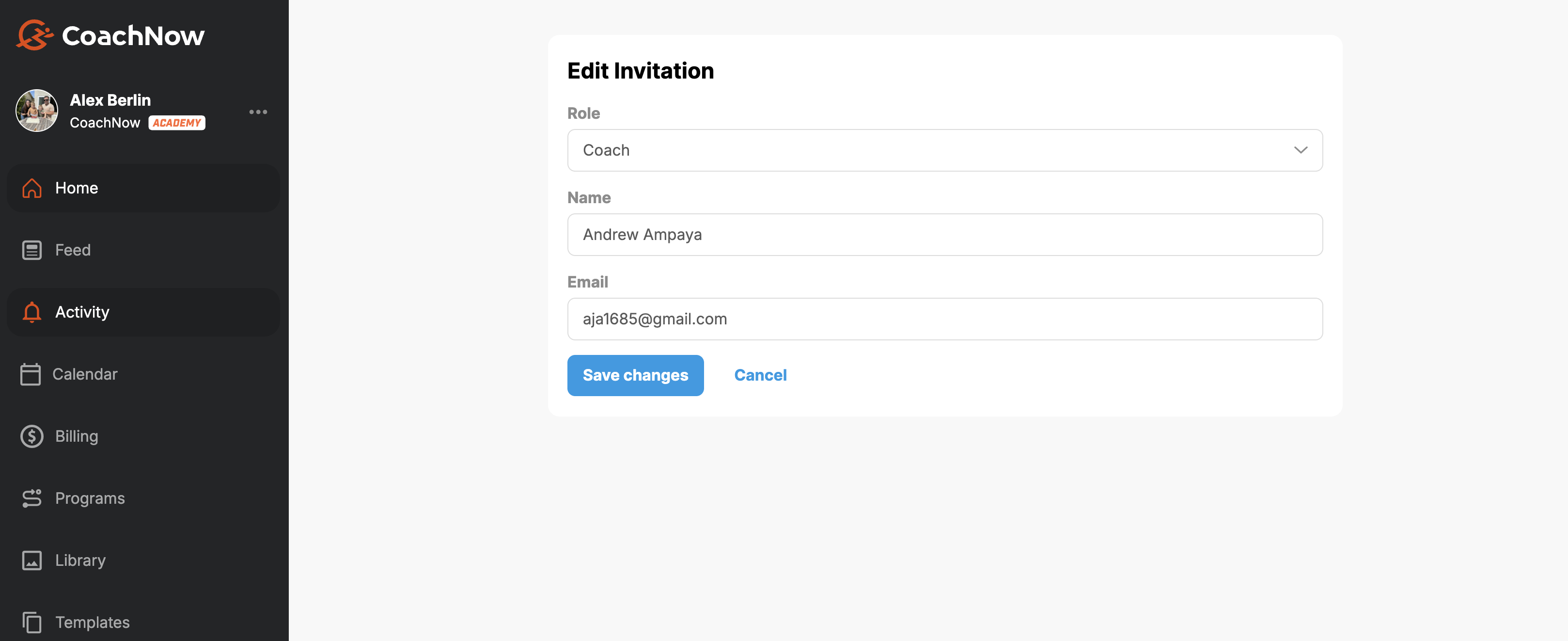
Editing invitations is helpful when you enter email addresses incorrectly.
Resending an invite is also an easy way to quickly re-engage your invitees so that they can stay on top of it. We'll also automatically send invitation reminders to them every couple of days.
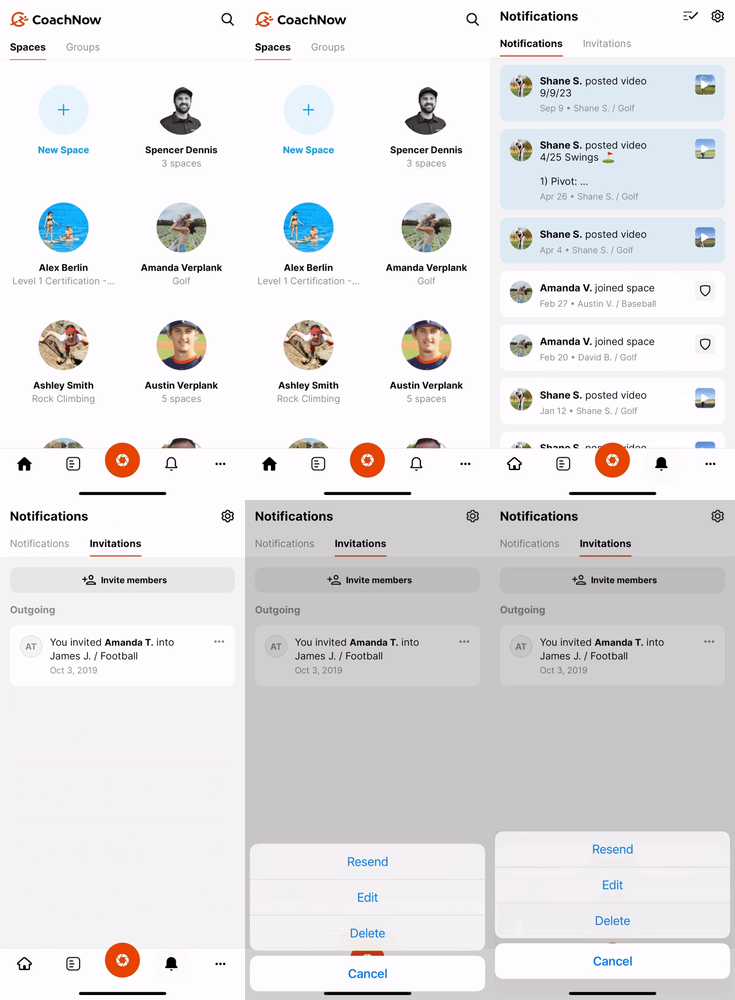
On the App
-Click on the Bell icon
-Click on Invitations
-Tap the 3 dot icon and choose resend, edit or delete
On the Web
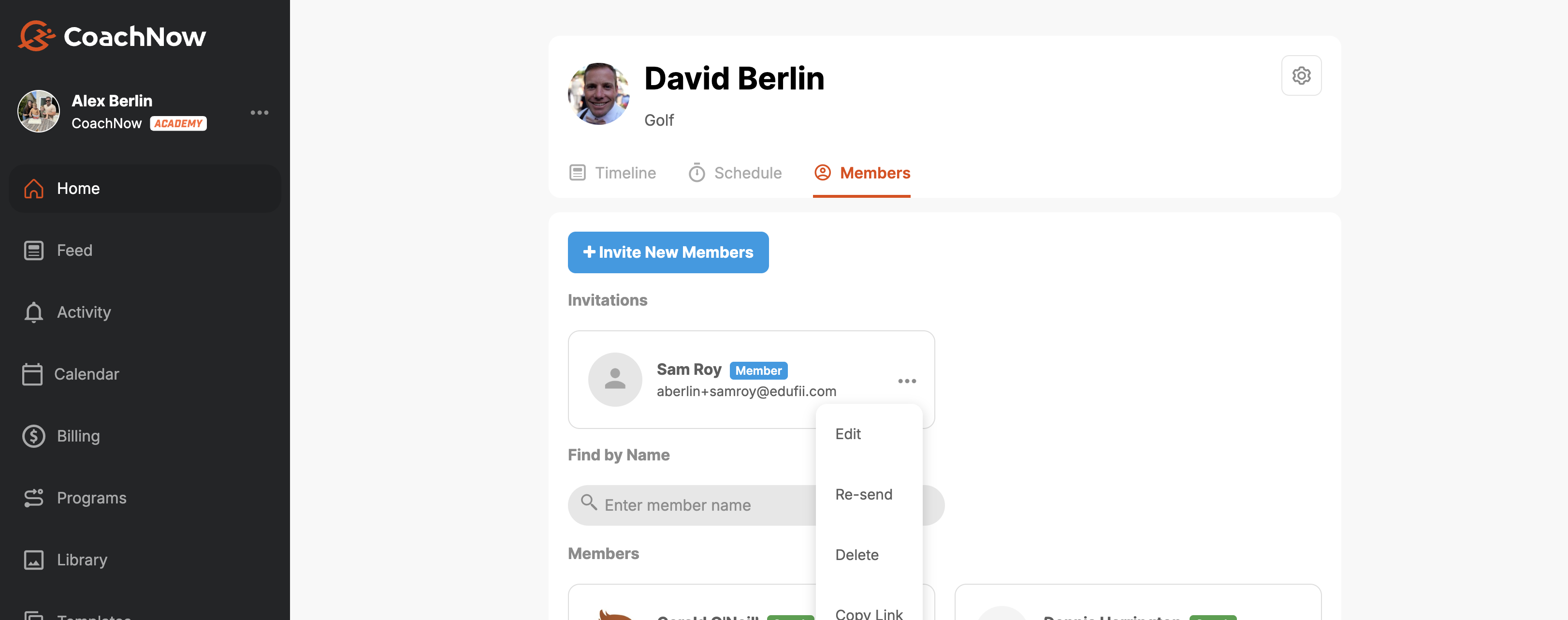
Navigate to the Space in your CoachNow account on the web, then click on the Members tab. Under the Members tab, you will see all members in the space and any pending invitations.
Click on the gear icon to view the edit, resend, and delete options. Save the changes to automatically edit or resend the invitation.
NOTE: If an invite has already been accepted, another invitation cannot be sent. The athlete must login with their existing account from the CoachNow login page.
How Can I Archive Spaces That I Am Not Active In?
As part of our PRO plan, we have Smart Lists, which will automatically group your Spaces into the most and least active Spaces. You can also create your own lists of inactive vs active Spaces to help keep track.
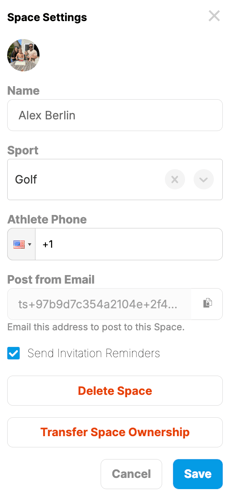
When it comes to Space access, we only have two options: to delete or leave a Space. Leaving a Space allows the athlete to maintain access, while removing access from your account.
*If you wanted to work with this athlete in the future, they would need to invite you back into the Space from their account.*
How Do I Know If My Coach Has Seen My Post?
When you have successfully connected to your Coach, everything you post in your Space or Group you share with them will be automatically shared. The Coach will receive a notification when you share and they will be able to access the content from inside their account.
NOTE: Anything posted in your Library will not be shared. The Library is private and only accessible from inside your account. Files in here will need to be posted to a Space or Group for your Coach to see them.
I Am Connected to a Paid Coach, But the App Is Asking Me to Pay. Do I Need to Upgrade to the Analyze Plan?
No. If you have been invited to CoachNow by a Coach who has one of our paid plans, you are not required to pay for a subscription of your own.
If you run into the paywall, simply click on the X in the top right to exit the screen. Then, contact support@coachnow.io if you have any follow-up questions!
We hope this clears up some of the most common questions we hear from our community. At the end of the day, our goal is to make sure CoachNow works for you, no matter what you use it for. If you ever run into something that isn’t covered here, reach out to support@coachnow.io or check out our other Help Articles here.
Keep an eye out for more tips and updates coming your way!